Online exam session checklist
Use this checklist to get ready for your WEARC online amateur radio exam session. A few minutes of prep helps the session run smoothly and keeps the focus on your exam.
What your workspace should look like
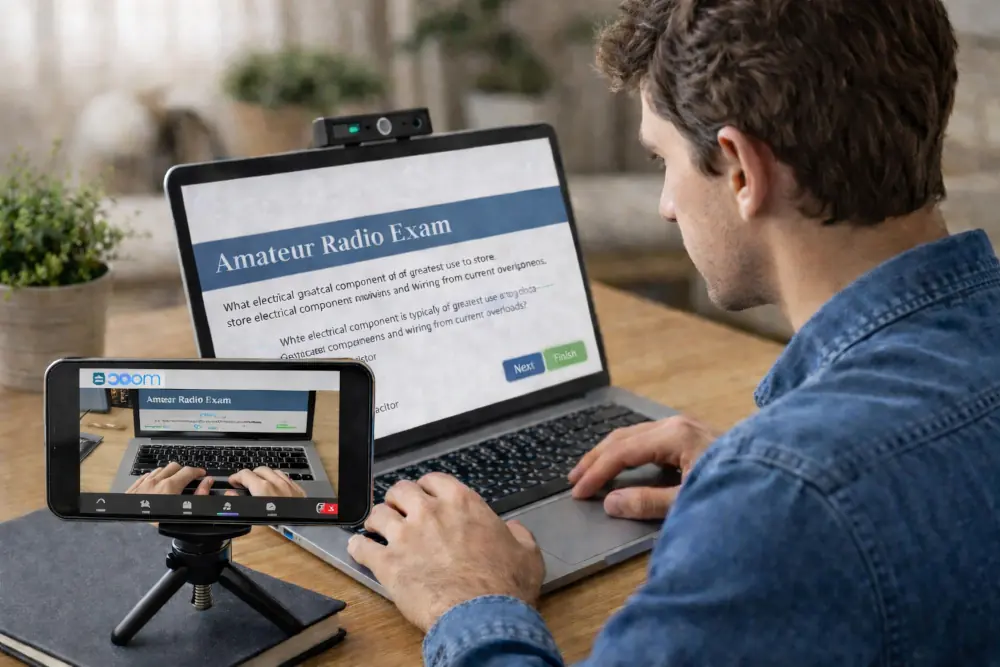
Plan to use a laptop for Zoom, and a smartphone camera for the second view. Both hands visible in the second view for the duration of the exam.
You will need two devices with cameras, most commonly a laptop and a smartphone. The laptop is your primary Zoom connection, while the smartphone provides a second camera view. Disable audio on the secondary device to avoid a feedback loop. Have a small stand ready so the phone can be positioned quickly when asked.
Install Zoom on both devices and confirm you are on the latest version. Right before the session, close all applications except Zoom. Keep your desk clear and make sure your exam room is private for the entire session.
Online exam session requirements
- Photo ID: A current government issued ID that matches your registration name. ARRL VEC ID Requirements - Click Here
- Zoom application installed on both devices, updated to the latest version.
- Your computer must have only 1 screen connected.
- Please cover or disconnect power from all unused screens (including TVs) in your field of view.
- Join Zoom with two devices (laptop and smartphone), audio disabled on second device (smartphone)
Zoom: Don’t Connect To Audio.

- Zoom camera settings: Disable blur background, enable HD (high definition) video.
- Small stand for the smartphone for easy positioning.
- Exit all VPN software (personal or corporate), some VPNs block the exam software from loading.
- All applications except Zoom closed or exited before joining the session, including taskbar notification area (Windows).
- Desk cleared of all papers and non-essential items.
- Room is private: only the candidate is permitted in the room during the exam.
- Hat, headphones, sunglasses, smartwatch removed.
During the session
We will verify your identity, walk through the process, and help you feel comfortable before the exam begins.
- Review the WEARC checklist instructions.
- Have a government-issued photo ID available.
- Pick a quiet space where you can focus.
- Join the Zoom session 5 - 10 minutes early and confirm your audio and video are working.
- You will be placed in the Zoom waiting room and brought into the main room once the VE team is ready for you.
- In the main room, you will be greeted by one VE who leads the session.
- Next, you will be introduced to at least 3 VEs, but often more. The entire VE team will assist in delivering the exam.
- The VEs will work with you to assure compliance of the room and computer before and during the exam.
- Scrap paper and physical calculators are not allowed because all candidate actions must be visible on the Zoom screen share.
- The exam software has an integrated on screen calculator option, you may use this as necessary during the exam.
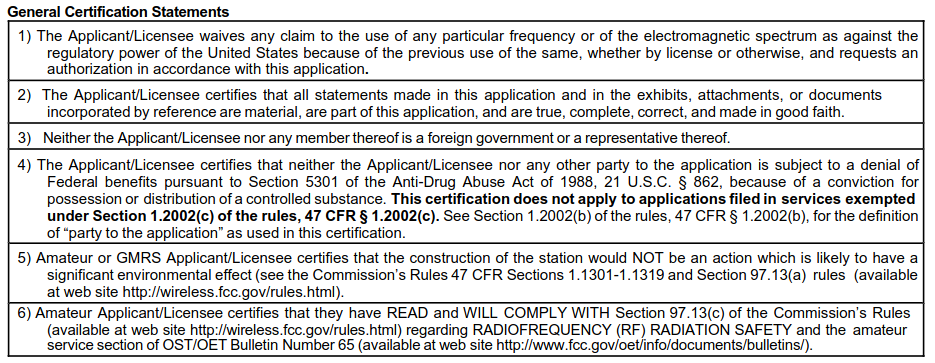
- At the end of the exam, you will be asked to review the certification statements, then provide electronic signature that will be applied to the FCC 605 form and VEC CSCE documents.
- After the form is signed, there are some final instructions and often a friendly casual discussion that will follow.
- The entire process from VE Zoom room entry to exit is typically around 30 minutes but may vary based on how much time you need to complete the exam.
Pick a session
Pick a session date on HamStudy, complete registration on HamStudy, pay the exam fee within one hour using the payment page or payment link, and watch for the ExamTools confirmation email.
Get test day help
Review troubleshooting tips for Zoom, webcams, and audio.