
Online exam session checklist
Use this checklist to get ready for your WEARC online amateur radio exam session. A few minutes of prep helps the session run smoothly and keeps the focus on your exam.
What your workspace should look like
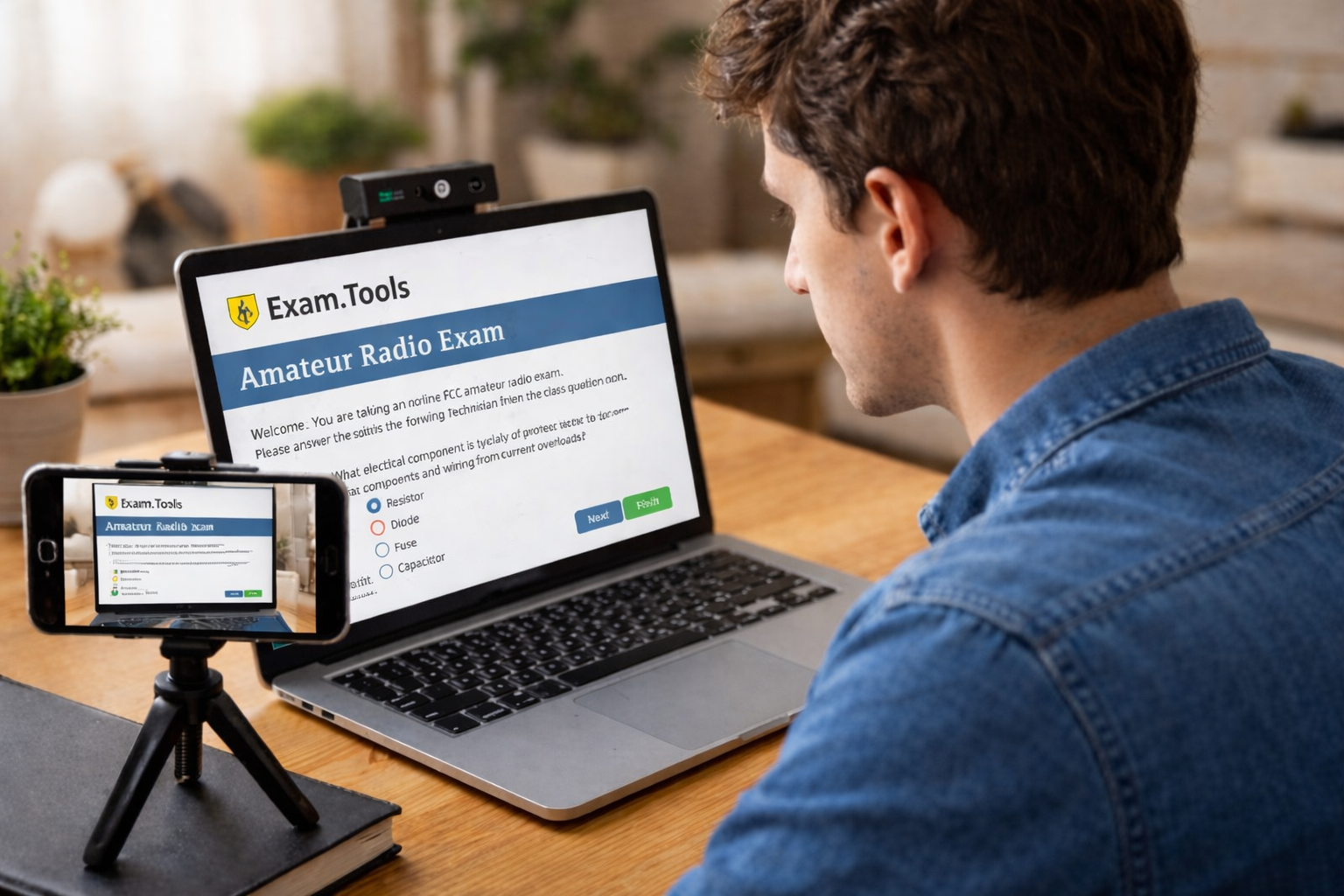
Plan to use a laptop for Zoom and a smartphone camera for the second view.
Quick prep overview
You will need two devices with cameras, most commonly a laptop and a smartphone. The laptop is your primary Zoom connection, while the smartphone provides a second camera view. Disable audio on the secondary device to avoid a feedback loop. Have a small stand ready so the phone can be positioned quickly when asked.
Install Zoom on both devices and confirm you are on the latest version. Right before the session, close all applications except Zoom. Keep your desk clear and make sure your exam room is private for the entire session.
Online exam session requirements
- Photo ID: A current government issued ID that matches your registration name.
- Zoom application installed on both devices, updated to the latest version.
- Your computer must have only 1 screen connected; please cover or disconnect power from any unused screens in your field of view.
- Join Zoom with two devices (laptop and smartphone), audio disabled on second device (smartphone) Zoom: Don’t Connect To Audio.
- Zoom laptop camera settings: Disable blur background, enable HD (high definition) video.
- Small stand for the smartphone for easy positioning.
- All non-critical applications closed or exited before joining the session.
- Desk cleared of all papers and non-essential items.
- Room is private: only the candidate is in the room during the exam.
- Hat, headphones, sunglasses, smartwatch removed.
- Email the VE team ahead of time if you plan to take more than one exam element.
- Only request additional elements if you are ready (a good target is scoring above 85% on practice exams).
- Registration and payment completed at least 1 hour prior to exam time.
Pick a session
Browse dates, pay the $15 fee, and complete registration right after payment.
Get test day help
Review troubleshooting tips for Zoom, webcams, and audio.